
Overview
The setup step is where people get stuck on Figma-to-code. There are two official Figma MCP servers, a handful of community ones, and half the tutorials online describe a version Figma has since replaced. This post is only the setup, verified against Figma's own help articles this month, plus the short list of tools worth knowing.
Short version: install Figma's plugin in Claude Code (claude plugin install figma@claude-plugins-official), authorize once, paste a frame link. Use the remote server unless your organization requires the desktop one. Check your seat before you start, because the free Starter plan and View or Collab seats get only 20 tool calls a month.
The conceptual post, on what to put in the prompt once it is connected, is here: How to Turn a Figma Design into Code with AI
Commands, tool names and rate limits checked October 9, 2026 against help.figma.com and developers.figma.com. Figma says it may adjust limits.
Which Figma MCP is which?
Figma ships two official servers. The remote server is hosted by Figma at https://mcp.figma.com/mcp, needs no desktop app, works on every plan and seat (with limits), and has the broadest feature set, including the write-to-canvas tools. The desktop server runs inside the Figma desktop app at http://127.0.0.1:3845/mcp, requires Dev Mode and a Dev or Full seat on a paid plan, and Figma now positions it for specific organization and enterprise cases only.
Use the remote one. The only reason to pick desktop is a policy that keeps traffic local or an admin who has not enabled the remote server.
Then there are community servers, mostly older Node packages that wrap Figma's REST API with a personal access token. They read only. If you are on one, switch; the official server reads more (variables, Code Connect, FigJam, Make files) and can write.
How do I connect Figma MCP to Claude Code in five steps?
Figma's recommended path is its Claude Code plugin, which bundles the MCP server config with Agent Skills.
- Step 1: In the terminal, run
claude plugin install figma@claude-plugins-official. Restart Claude Code if it was already running. - Step 2: Type
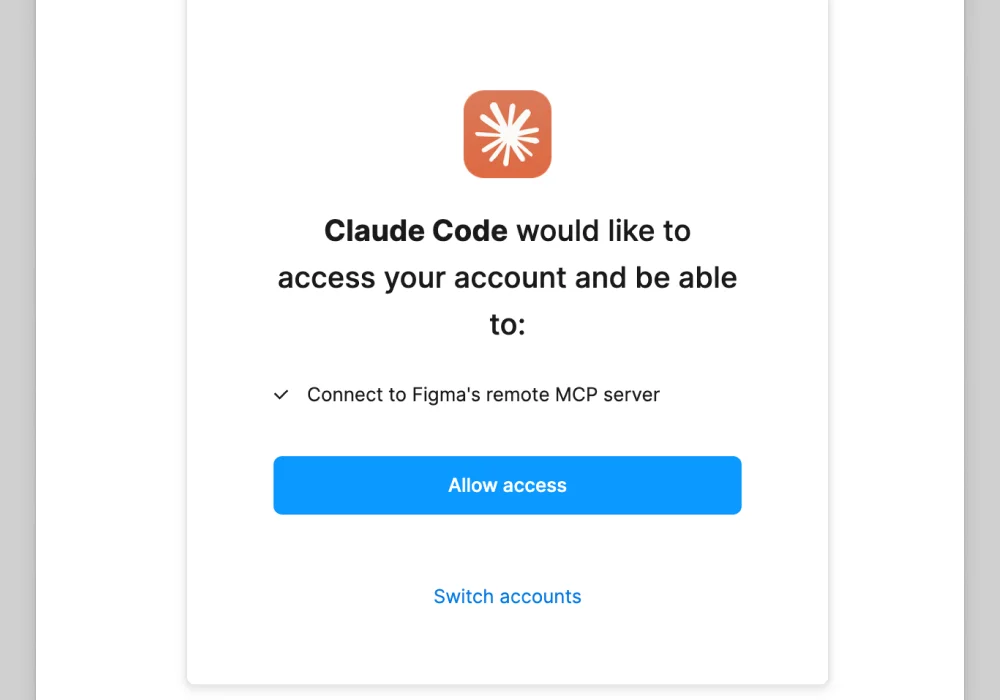
/pluginand press Enter. Use the right arrow to reach the Installed tab, arrow down tofigma, and press Enter to start authorization. - Step 3: A browser page opens. Click Allow access to let Claude Code use your Figma account.
- Step 4: Back in the terminal, run
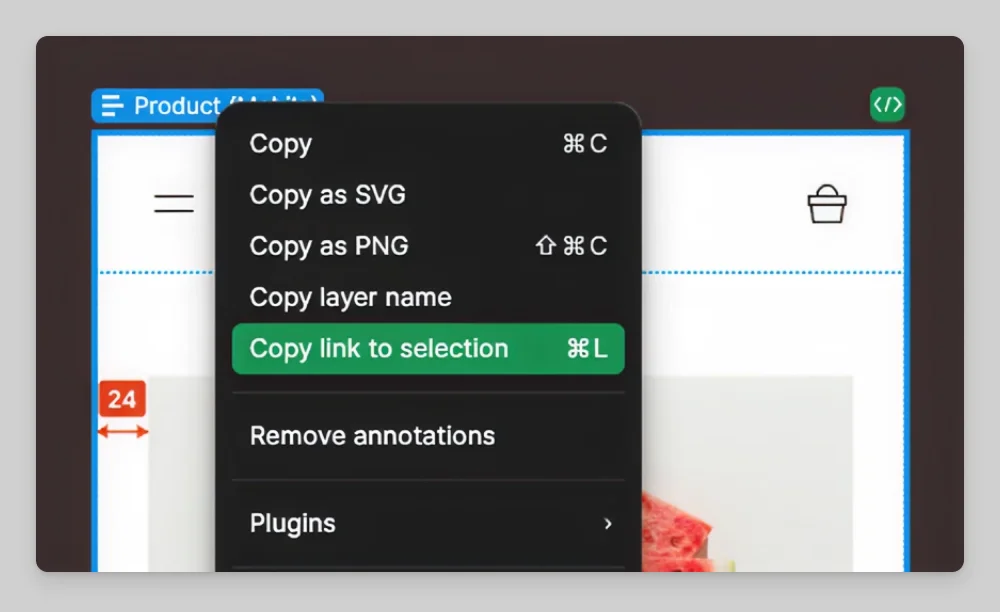
/pluginagain and confirmfigmashows as connected. - Step 5: In Figma, right-click a frame and choose Copy link to selection. Paste it into a Claude Code prompt: "Read this frame and implement it with our existing components."
Desktop alternative: in the Figma desktop app, open a Design file, switch to Dev Mode with nothing selected, enable the MCP server in the right sidebar, then run claude mcp add --transport http figma-desktop http://127.0.0.1:3845/mcp and restart Claude Code.
If the plugin install fails with a message about your organization, an admin has blocked plugin installs; the remote server can still be added by hand as an HTTP MCP server at https://mcp.figma.com/mcp if your Claude admin allows it.
What about Cursor and Codex?
Cursor: open the chat, enter /add-plugin figma and submit, then click Add Plugin. Open the command palette, search Cursor Settings, choose Tools & MCP, and under Installed MCP Servers click Connect to run the Figma sign-in. For the desktop server, add a custom MCP with {"mcpServers": {"figma-desktop": {"url": "http://127.0.0.1:3845/mcp"}}}.
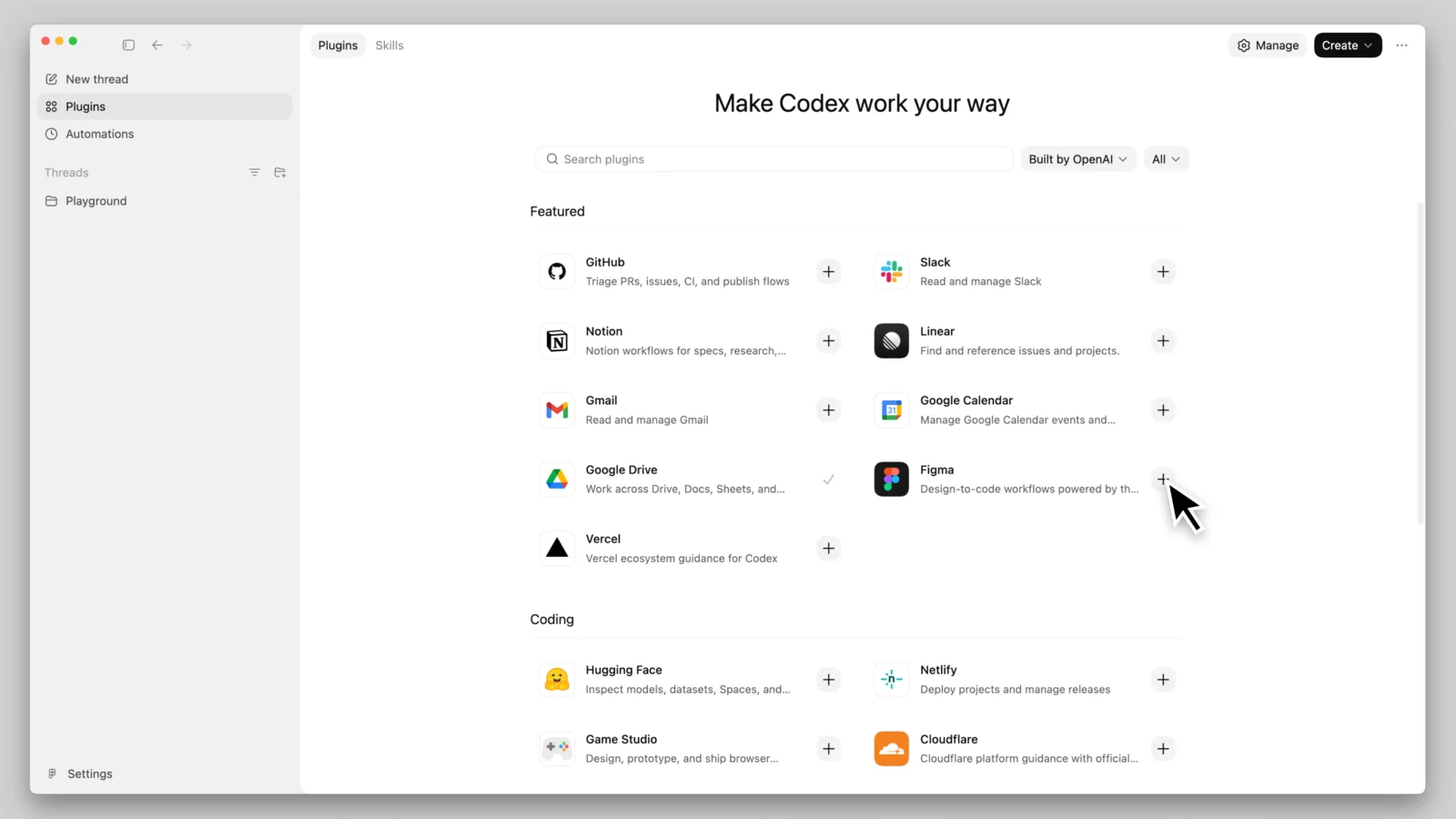
Codex: in the Codex app, click Plugins in the upper left, click the plus next to Figma, choose Install Figma, and click Allow access when the auth page opens. Nothing else to configure. For the desktop server, go to Settings, MCP servers, Add server, switch the type from STDIO to Streamable HTTP, and enter the local URL.
The rest of the Codex and Cursor setup for designers, beyond Figma, is in these two: How to Use Codex as a Designer and How to Use Cursor as a Designer
Which of the 32 tools matter to a designer?
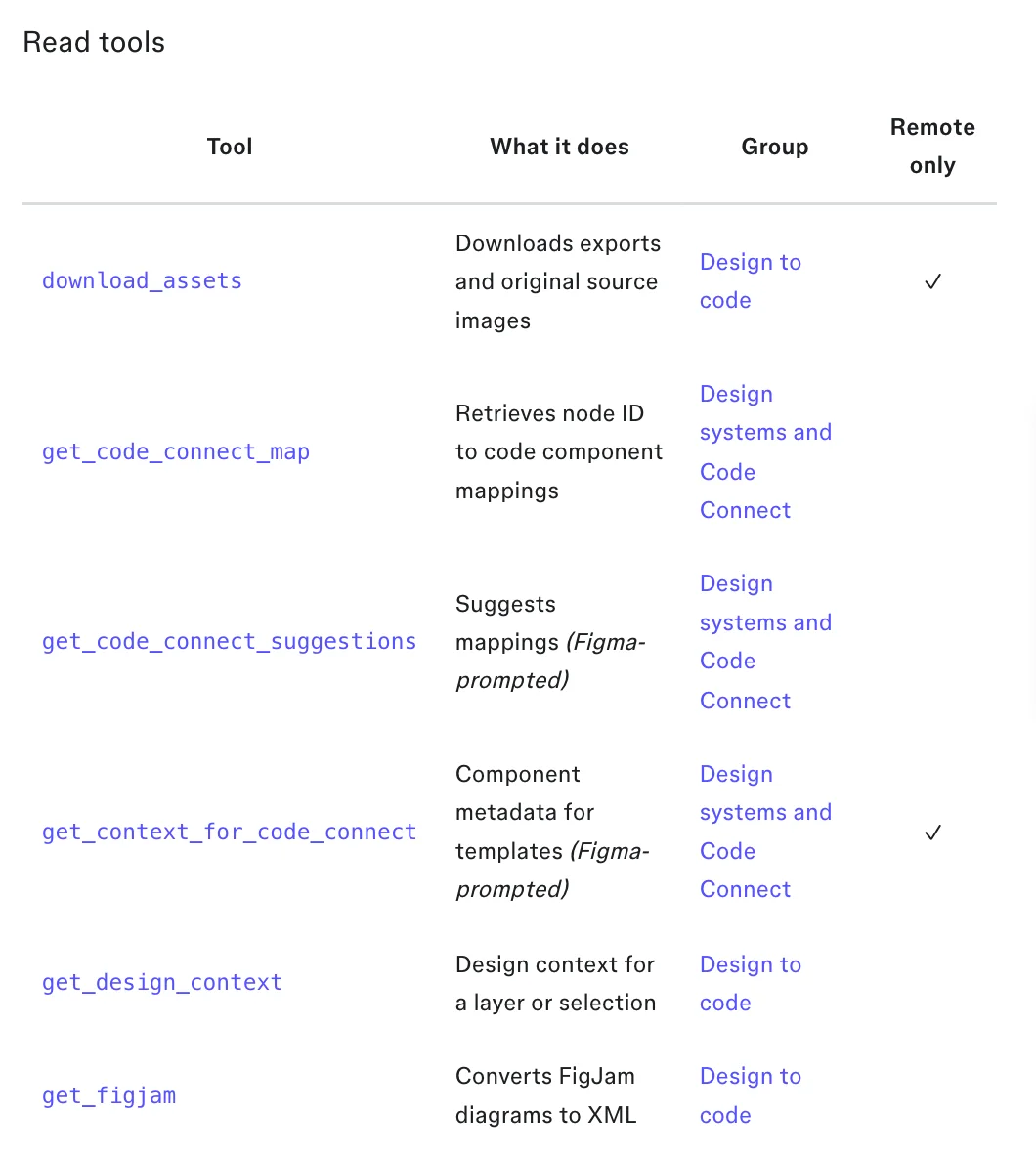
Figma's tools reference lists 32 tools across reading, writing, design systems, Code Connect, generative plugins, shaders and Weave. Six do most of the work in a design-to-code session.
get_design_context: the main one. Returns the structure, styles and layout of the selected frame in a form the agent can build from.get_screenshot: a visual of the selection so the agent can compare its build to the design.get_variable_defs: the variables and styles used in the selection, which is how tokens survive the trip.get_code_connect_map: the mapping between Figma components and your code components, so the agent reusesButtoninstead of inventing one.search_design_systemandget_libraries: find components, variables and styles in your connected libraries before building.get_metadata: a sparse outline of layer IDs, names and sizes, useful for big frames where full context is too much.
Then two you will grow into. use_figma creates, edits and inspects objects on the canvas from code, and generate_figma_design turns a live web UI into editable Figma layers. The rest (FigJam, Mermaid diagrams, generative plugins, shaders, Weave) are real but not day-one.
Does it work on the free Figma plan?
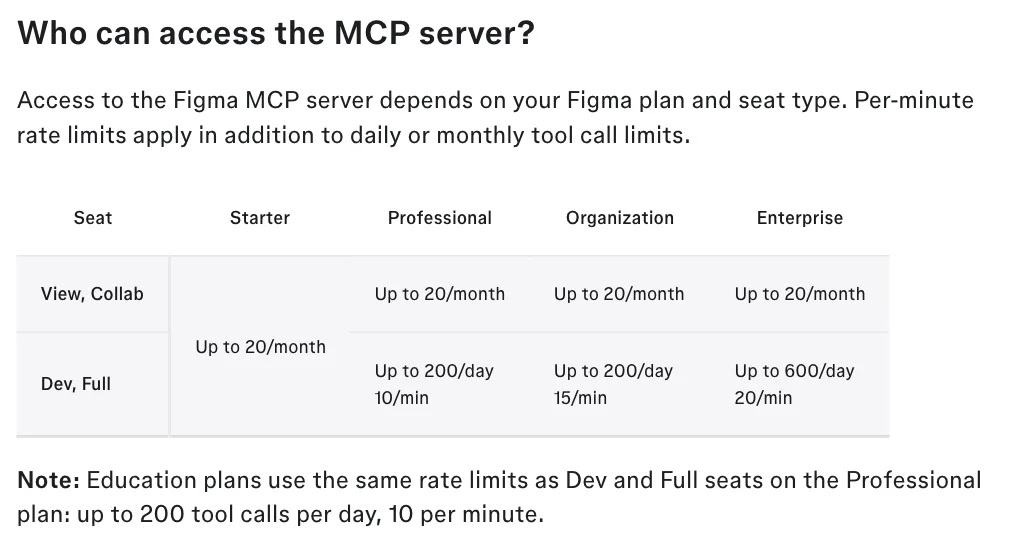
It connects, and then it stops. Figma's rate-limit page, October 2026: on the free Starter plan every seat gets up to 20 tool calls a month. On paid plans, View and Collab seats also get 20 a month, while Dev and Full seats get 200 calls a day (10 a minute) on Professional, 200 a day (15 a minute) on Organization and 600 a day (20 a minute) on Enterprise.
One design-to-code pass calls several tools, so a View seat's monthly allowance is gone in the first session. The practical rule: you need a Dev or Full seat on a paid plan. Three tools are exempt from the limits (add_code_connect_map, create_new_file, whoami), and whoami is how you check which seat the server thinks you have; run it first if calls start failing.
Design to code: reusing my components, not reinventing them
The tools give the agent the data; the prompt and the project context decide whether it uses it. Two habits. First, state the reuse rule in the prompt: "Use get_code_connect_map and our existing components in src/components; do not create new primitives." Second, keep the same rule in your project's AGENTS.md or CLAUDE.md so it applies to every session: How to Write an AGENTS.md File for Design Projects
If your team has not set up Code Connect, the agent has nothing to map to and will translate pixels into fresh components. Setting it up is the biggest quality improvement available for Figma-to-code, and the MCP has tools to help write the mappings.
Code to design: pushing a built screen back into Figma
This is new enough that most people do not know it exists. With the remote server, generate_figma_design captures a running web UI and sends it into Figma as editable layers, and use_figma can create and edit frames, components, variables and auto layout directly. The loop that follows: build in Claude Code, push the built state back to Figma so the design file matches what shipped, then iterate in whichever tool suits the next change.
Figma marks write-to-canvas as beta and currently free of extra charge. Expect rough edges on complex layouts and check the auto layout it produces.
Common errors
- The server connects but every call fails: check the seat with
whoami. View and Collab seats, and every seat on the free Starter plan, hit the 20-a-month cap almost immediately. - Claude Code says the plugin is blocked: an admin has disabled plugin installs. Ask, or add the remote server by hand.
- Desktop server not found: Dev Mode is off, the file is not a Design file, or the toggle was never enabled in the right sidebar.
- The agent ignores my components: Code Connect is not set up, or the prompt did not tell it to look.
- Frame link returns nothing: you need at least view access to the file, and the link must be a selection link, not a prototype or embed link.
FAQ
The server is available on all plans and seats, but usage is capped. The free Starter plan gets 20 tool calls a month, as do View and Collab seats on any plan. Dev and Full seats get 200 calls a day on Professional and Organization and 600 on Enterprise.
Remote, at mcp.figma.com/mcp. It has the broadest features, including writing to the canvas, and needs no desktop app. The desktop server is for organizations with a policy reason to keep traffic local, and it requires Dev Mode and a Dev or Full seat.
Yes. Both have a one-click plugin install (/add-plugin figma in Cursor; Plugins, Install Figma in the Codex app) followed by a Figma sign-in. The same remote server serves all three clients.
Yes, through the remote server. use_figma creates and edits objects on the canvas and generate_figma_design turns a live web UI into editable layers. Figma marks these as beta.
Figma's reference lists 32. A designer uses about six regularly: design context, screenshot, variables, Code Connect map, design system search and metadata.
Only for the desktop server. The remote server works from a frame link with view access to the file.
Where this fits
The Figma MCP is the connection that lets an agent build from your actual design rather than a screenshot of it. Install it once, get a Dev or Full seat, set up Code Connect, and the rest of the Figma-to-code process gets easier. It sits alongside Mobbin for references and Relume for sections in the list of servers I run: The Best MCP Servers for Designers (2026)